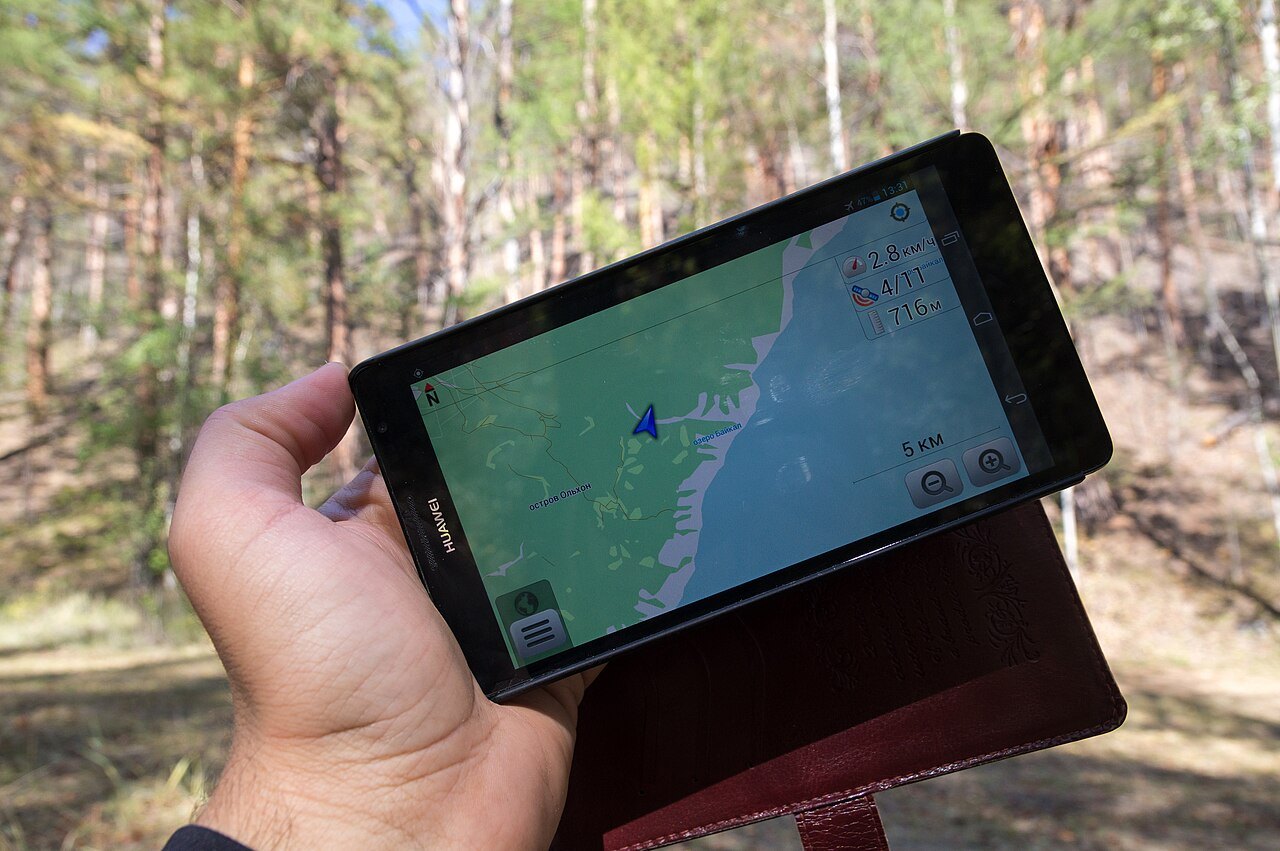

A map visible on a screen is not necessarily an offline map. Some applications retain previously loaded areas but lose essential detail when you pan or zoom. Deliberately prepare the information that must remain available without reception. This includes not only the intended route but the starting point, return options and correct entrance to the destination.
Choose a wider area than the route alone
Do not save only a narrow strip along the planned line. If a section closes or you want to return early, you will need surrounding geography. Include nearby roads, settlements and recognisable reference points. For a cross-border outing, the saved area should not end exactly at the national boundary.
Regional tourism information offers brochures and maps for different outings. Check whether a downloaded document contains a usable map or only a promotional overview. An attractive illustration without street names or recognisable junctions may offer little help in finding a specific return route.
Perform a real offline test beforehand
Open the saved material and temporarily disable the data connection. Check whether you can pan, enlarge relevant details and find the starting point again. For a PDF, confirm that the whole file has downloaded rather than merely opening through a link. Exact controls depend on the application used.
Distinguish map display from navigation. An available base map does not automatically mean the application can calculate a new route offline. Test that function specifically if you need it. Otherwise, rely on prepared orientation and a straightforward alternative instead of assuming a software capability while out.
For a brief test, work through three situations: you are at the start and need to find the entrance; you want to turn back halfway; you are at the destination and need the return stop. If one task cannot be solved with the data connection disabled, information is still missing. Fill that specific gap rather than saving more maps indiscriminately. Also check that labels remain legible when enlarged and that the material is readable at the screen brightness you intend to use.
Add a small information card
Record the starting point's name and address, the intended entrance and essential return information. A screenshot may suffice if everything is legible. A bus connection needs direction and stop as well as time. Label saved timetable information with the travel date.
For example, a route line may lead to the centre of a park while the visitor entrance lies on another side. Save the entrance separately and check its connection to your starting point. Discovering at a closed side gate that the line was imprecise is not solved by a perfectly downloaded map image.
With several people, a second copy on another device or paper may be useful if one phone fails. This redundancy does not replace agreeing which route will actually be used. Compare different saved plans before departure rather than discovering the disagreement at a junction.
A route line should not be the only information saved. If it ends at a closed bridge, you need recognisable place names and a wider area to plan returning. Another line on the map establishes neither walkability nor public access. Use the map to find your way back to a known entrance and assess alternatives through current local information. A paper overview can help you understand the spatial relationships even though it does not display a moving position. Keep it accessible rather than buried beneath other belongings.
Current notices still matter
An offline map does not guarantee open routes. Closures, works and local signs take precedence over an older line. Check conditions online again shortly before travelling where possible and incorporate changes into the saved plan. If navigation or access becomes unclear, return to a known point rather than treating any line on the display as permission to continue.